

How to set up TeamBlue (GigaBlue)
Set up your IPTV subscription on a GigaBlue receiver running a TeamBlue image. Upload your userbouquet file over FTP with WinSCP in a few simple steps.
- 1
Find your receiver's IP address
Use Angry IP Scanner on your network to locate the IP address of your GigaBlue box.
- 2
Connect with WinSCP
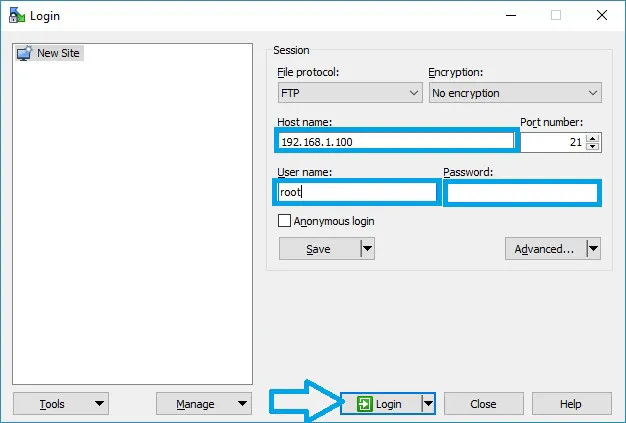
Open WinSCP, choose the FTP protocol, enter the box IP, set the user name to root, leave the password empty, and click Login.
- 3
Upload the userbouquet file
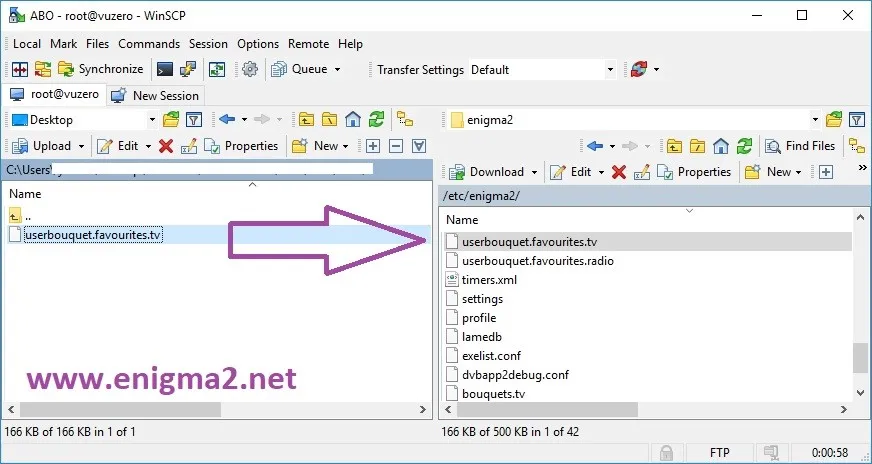
Drag your userbouquet.favourites.tv file into the /etc/enigma2 folder on the receiver.
- 4
Restart the receiver
Reboot the GigaBlue box so it reloads the bouquets and shows your IPTV channels.
Frequently asked questions
Where do I get the GigaBlue channel (userbouquet) file?
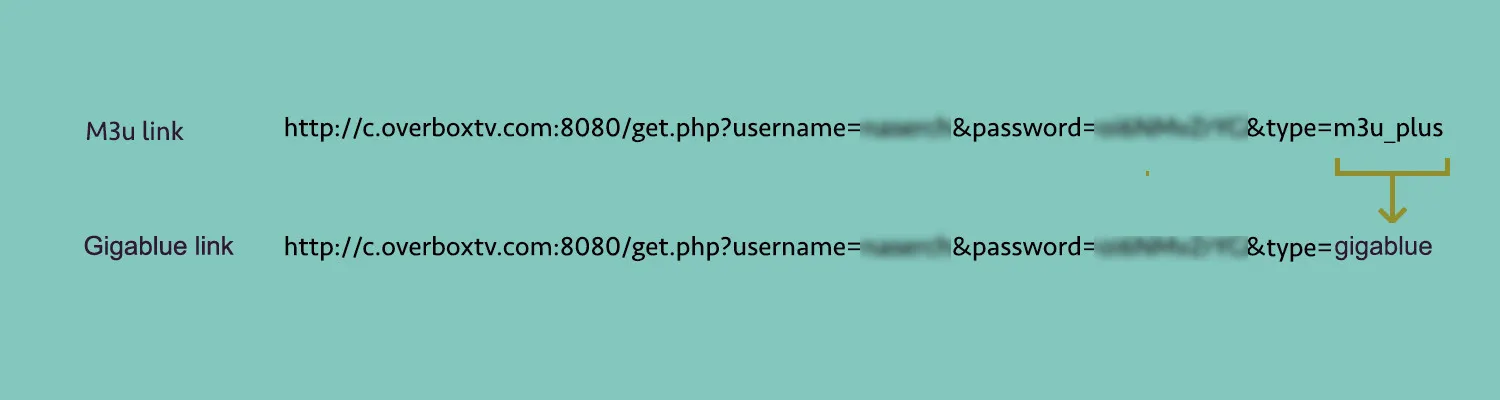
Your IPTV provider normally supplies it. In most cases, though, you can generate the userbouquet.favourites.tv file yourself from your M3U link by opening the GigaBlue/Enigma2 link in a browser and downloading the file it returns.
What is the default login for a TeamBlue image over FTP?
The default user name is root and the password is left empty. If you changed it during setup, use your custom credentials instead.
Which GigaBlue models does this work on?
It works across the GigaBlue range running a TeamBlue image, including the HD 800 Solo/SE/UE, HD Ultra UE, HD X1 and X3, HD Quad, and UHD 4K models.
Don’t have your login yet?