

How to set up Perfect Player
Set up IPTV on Perfect Player for Android and Windows. Add your M3U playlist, enable channel groups, and fix buffering with the right decoder settings.
- 1
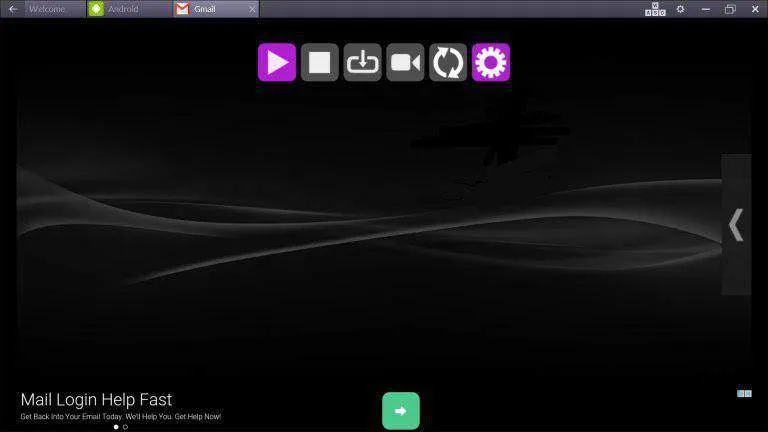
Open Settings
Launch Perfect Player and open Settings from the main menu.
- 2
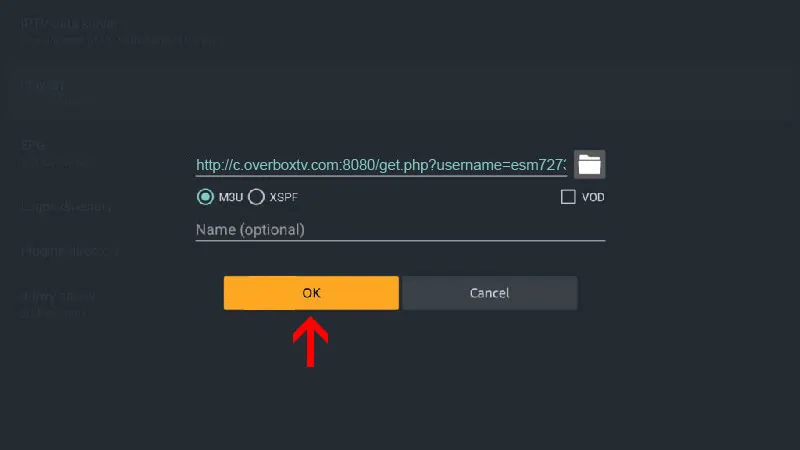
Add your M3U playlist
Go to General > Playlist and paste your M3U link into the URL or File path field.
- 3
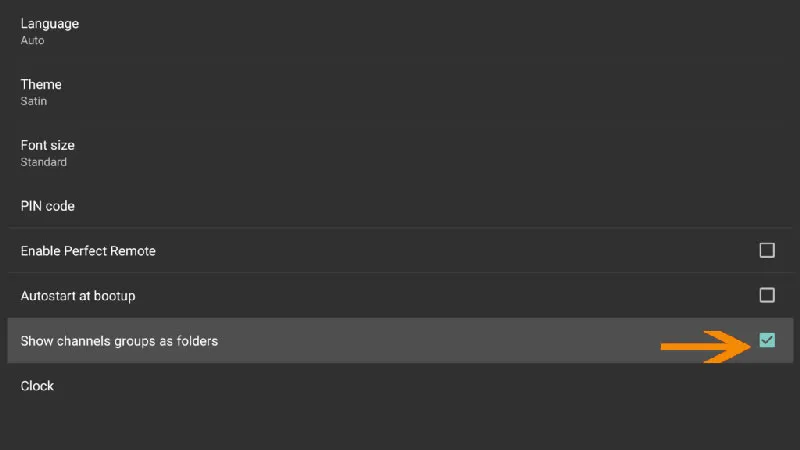
Enable channel groups
Under Settings > GUI, turn on Show channel groups as folders to organize a large playlist by category.
- 4
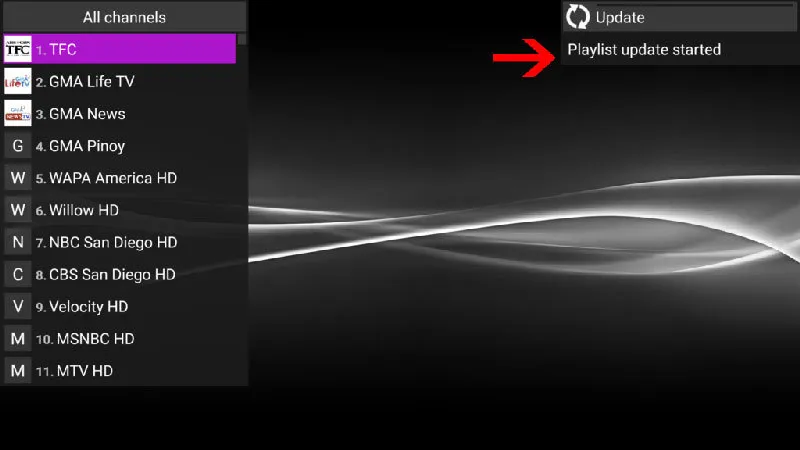
Load channels and VOD
Return to the main screen, where your live channels and Video on Demand content load automatically.
Frequently asked questions
Which platforms does Perfect Player support?
Perfect Player is available for Android and Microsoft Windows. The app is free with ads; you can remove the ads by upgrading to the premium version.
How do I stop the video from buffering?
Open the playback settings and change the decoder. Auto is recommended, but you can try HW+, Hardware, or SW for a slow connection. You can also raise the buffer size from 1 (smallest) up to 4 (largest).
Why are all my channels in one long list?
Enable Show channel groups as folders under Settings > GUI. Perfect Player will then split the playlist into folders by category, which is much easier to browse with a large M3U.
Does Perfect Player support VOD?
Yes. As long as your M3U playlist includes Video on Demand entries, they appear automatically alongside your live channels on the main screen.
Don’t have your login yet?