

How to set up Kodi
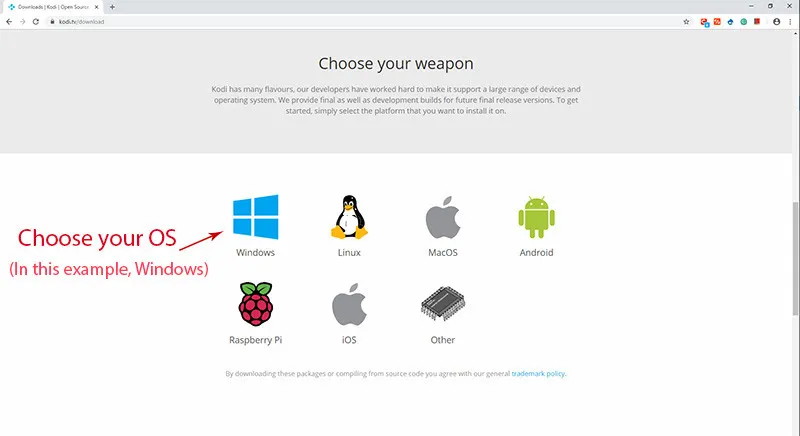
Set up IPTV on Kodi using the PVR IPTV Simple Client add-on. Add your M3U playlist and EPG to stream live channels on any Kodi-supported device.
- 1
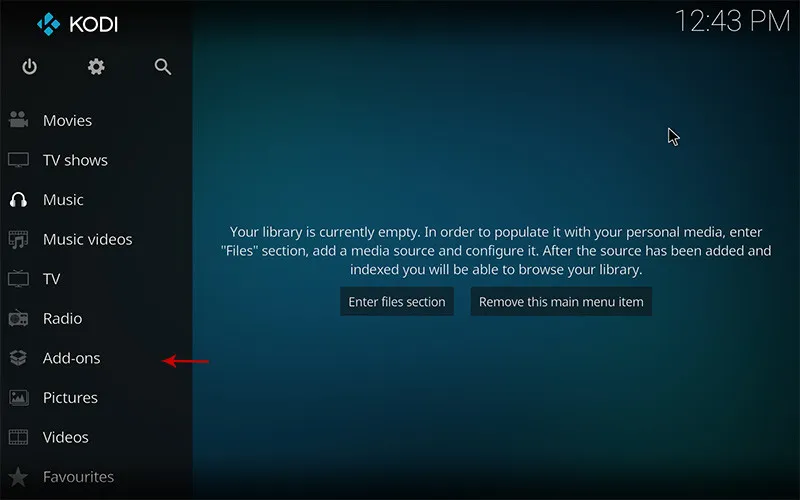
Open the Add-ons menu
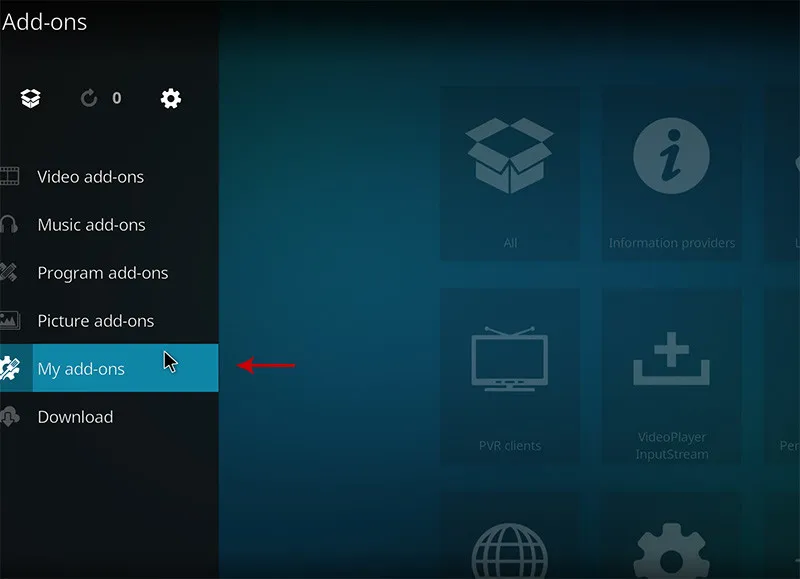
From the Kodi home screen, open the Add-ons menu and select My add-ons.
- 2
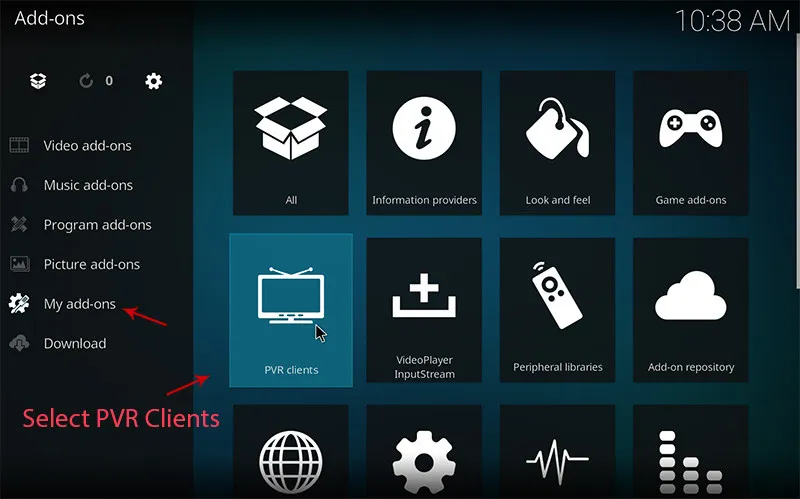
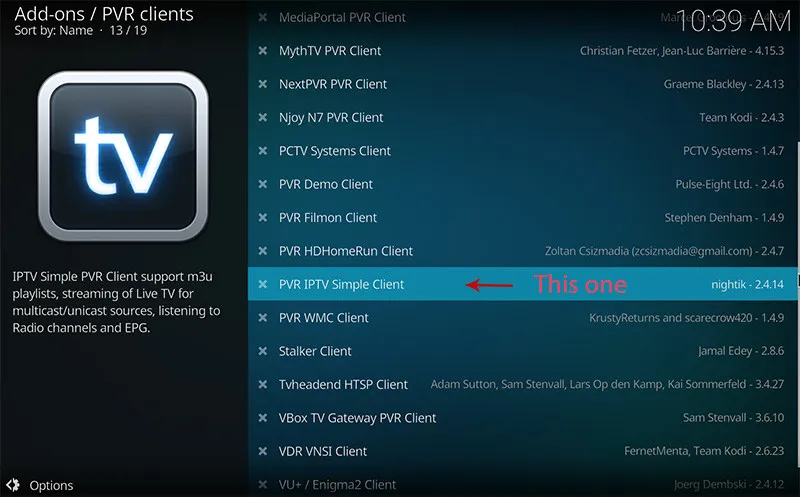
Choose PVR IPTV Simple Client
Open the PVR Clients category and select PVR IPTV Simple Client.
- 3
Add your M3U playlist
Click Configure, choose the M3U Playlist URL location, and paste the link from your IPTV provider.
- 4
Add your EPG URL
Open the EPG Settings tab, select XMLTV URL, and paste the EPG link from your provider.
- 5
Enable the client
Enable PVR IPTV Simple Client and wait for Kodi to load your channels.
Frequently asked questions
Is Kodi free to use for IPTV?
Yes. Kodi is a free, open-source media center, and the PVR IPTV Simple Client add-on it uses for IPTV is built in at no cost. You only need an M3U playlist from your IPTV provider.
Where do I find my EPG URL?
The EPG (electronic program guide) URL usually comes from the same IPTV provider that gave you your M3U playlist. You can often derive it from your M3U link or simply ask your provider for it.
Which devices can run Kodi for IPTV?
Kodi runs on a wide range of platforms, including Android, Windows, Linux, iOS, Amazon Fire TV, Apple TV, Xbox, Raspberry Pi, and desktop PCs, so you can use the same setup almost anywhere.
Why are my channels not loading after setup?
Make sure the PVR IPTV Simple Client is enabled, that your M3U link is active and correctly pasted, and that you waited for the on-screen notification confirming the channels finished loading.
Don’t have your login yet?