
How to set up Chromecast
Stream IPTV to your TV with Chromecast using the BubbleUPnP app. Connect to the same WiFi, load your M3U playlist, and cast live channels from your phone.
- 1
Connect to the same WiFi
Make sure your smartphone and Chromecast are connected to the same WiFi network.
- 2
Open BubbleUPnP
Turn on the TV with the Chromecast plugged in and open the BubbleUPnP app on your phone.
- 3
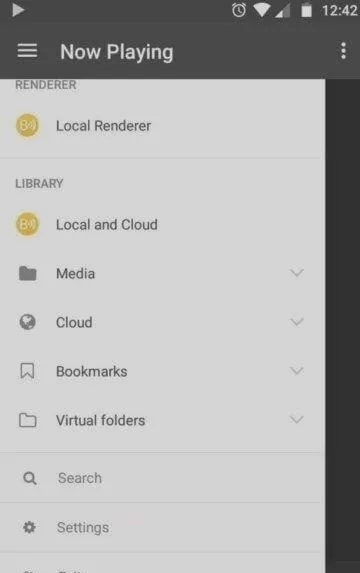
Select the Chromecast
Open the left-side menu in BubbleUPnP and select your Chromecast as the playback device.
- 4
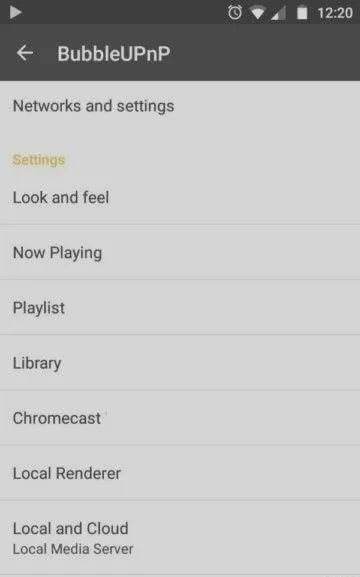
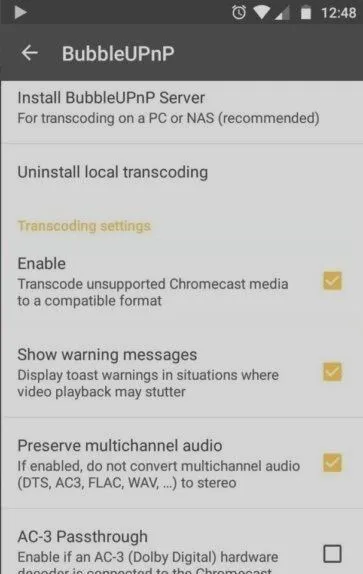
Enable transcoding
In the app settings, open the Chromecast section, install the local transcoder, and enable transcoding.
- 5
Load and cast your M3U playlist
Copy your M3U file to the phone, open it in BubbleUPnP from internal storage, pick a channel, and start casting.
Frequently asked questions
What is Chromecast and how does it stream IPTV?
Chromecast is a small device that plugs into your TV's HDMI port and is powered by USB. It uses Google Cast to stream content from your phone or computer to the TV, including IPTV channels loaded through an app like BubbleUPnP.
Which app do I need to cast IPTV to Chromecast?
BubbleUPnP is a reliable choice. It can load your M3U playlist, transcode the streams, and cast individual channels to your Chromecast.
Why do I need to enable transcoding?
Chromecast does not natively support every IPTV stream format. BubbleUPnP's transcoder converts incompatible streams into a format Chromecast can play, which prevents playback errors.
Do my phone and Chromecast need to be on the same network?
Yes. Both devices must be on the same WiFi network for your phone to discover the Chromecast and cast streams to it.
Don’t have your login yet?